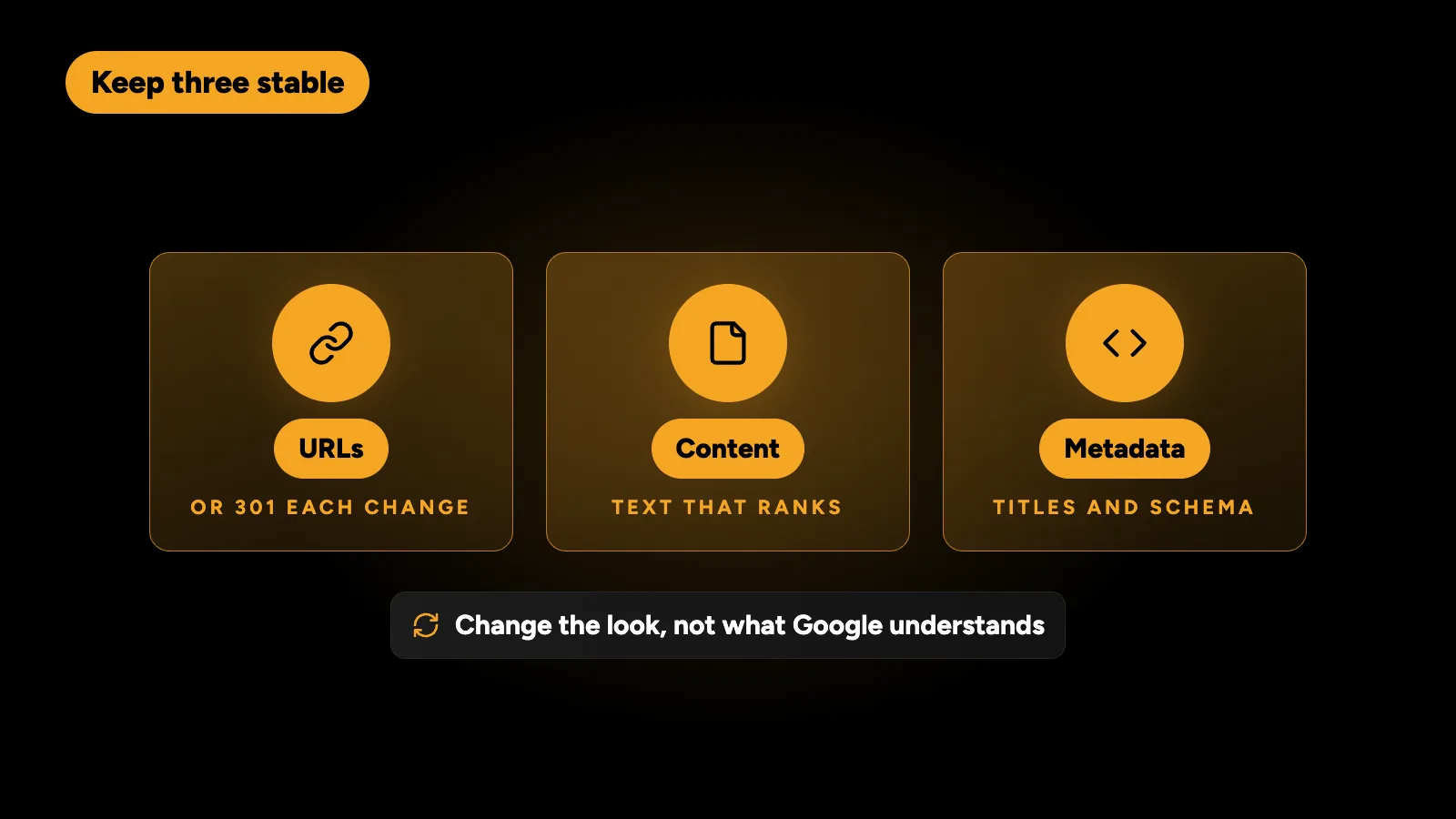
You can redesign a WordPress site without losing rankings if you keep three things stable: URLs (or redirect every changed one with a 301), content (the text and headings that rank) and metadata (titles, descriptions and structured data). Most traffic drops after a redesign come from missing redirects, deleted pages, a staging “noindex” left switched on, or content cut down to fit a new layout.
A redesign should change how the site looks and works, not what Google understands about it. Here is the process I follow, step by step.
Why do sites lose rankings after a redesign?
Rankings belong to URLs and their content. When either changes without a plan, Google has to rediscover the site, and some pages never recover. The usual causes are:
| Cause | What happens | How to prevent it |
|---|---|---|
| Changed URLs without redirects | Old links and rankings point at 404 pages | A full 301 redirect map |
| Pages removed or merged | Rankings for those queries disappear | Keep or redirect every page with traffic |
| Content cut for design | Pages lose the words they ranked for | Move content into the new design, don’t trim it |
| Titles and descriptions reset | Search snippets change and click-through drops | Carry metadata over page by page |
| Staging “noindex” left on | Google is told not to index the new site | A launch checklist with this as item one |
| Slower new design | Worse Core Web Vitals and engagement | Test mobile speed before launch |
| Internal links broken | Important pages lose authority | Crawl the new site before launch |
Step 1: Benchmark before you touch anything
Record where you stand so you can measure the result and spot problems quickly.
- Export your top pages and queries from Google Search Console for the last 12 months.
- Crawl the current site with a tool such as Screaming Frog to list every URL, title, description, H1 and status code.
- Export backlinks to know which URLs other sites link to.
- Note Core Web Vitals and key conversions from analytics.
Step 2: Build a URL map
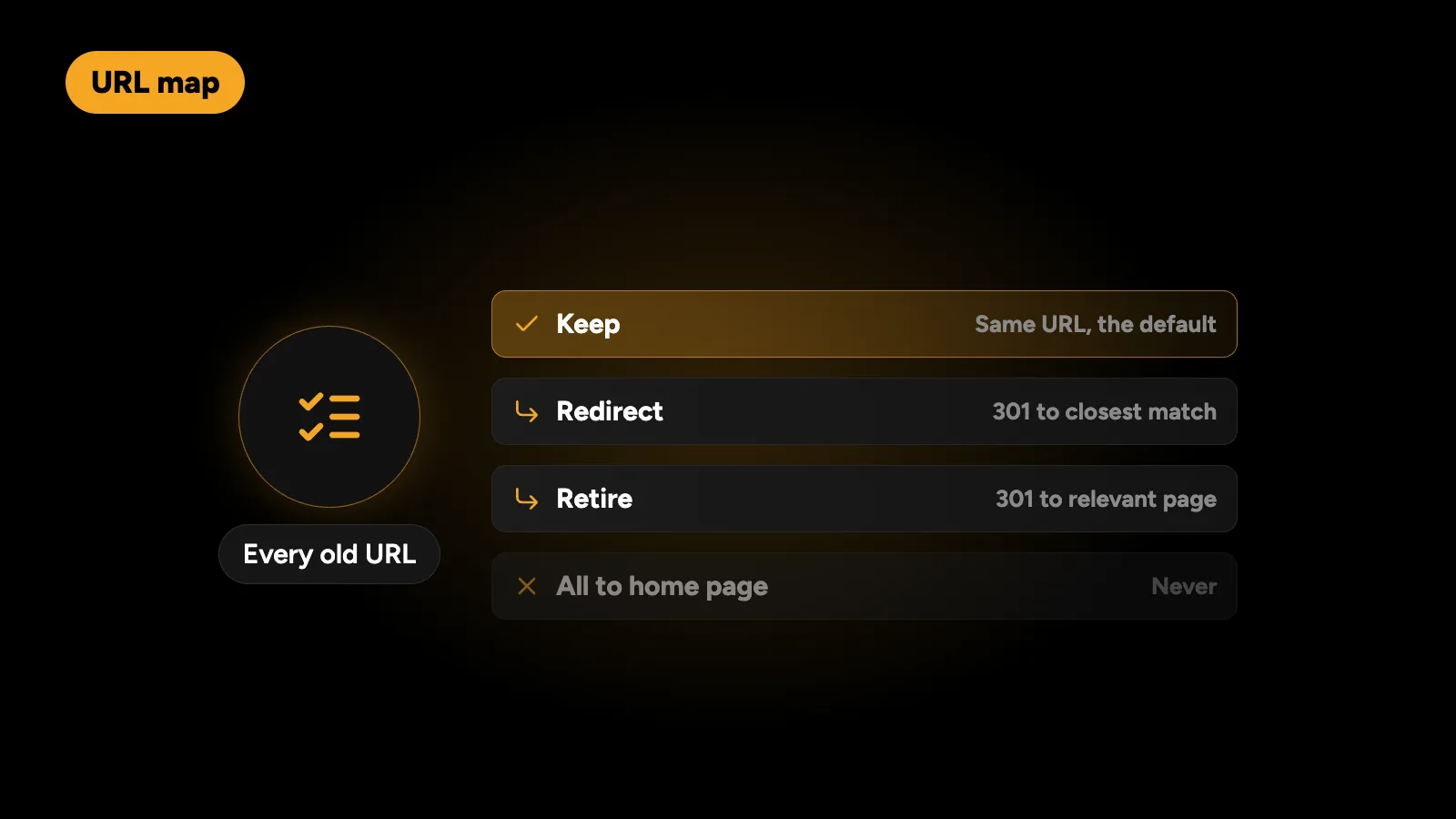
List every current URL and decide what happens to it.
- Keep: the URL stays the same. This is the safest option and should be the default.
- Redirect: the URL changes, and the old one sends a 301 to the closest new equivalent.
- Retire: the page has no traffic, no links and no value. Even then, redirect it to the most relevant page rather than leaving a 404.
Never redirect everything to the home page. Google treats that much like a missing page. Each old URL should point to the page that best answers the same need.
Step 3: Keep the content that ranks
Designers often want less text. Search engines and AI answers want clear, complete answers. Settle the conflict in the layout, not by deleting copy.
- Keep each important page’s main text, headings and FAQs.
- Use the new design to make long content easier to scan: tabs, accordions, comparison tables, “see more” sections. Content inside them stays in the HTML and is still read by Google.
- If you rewrite, keep the topic and the key terms each page ranks for.
Step 4: Carry over the metadata
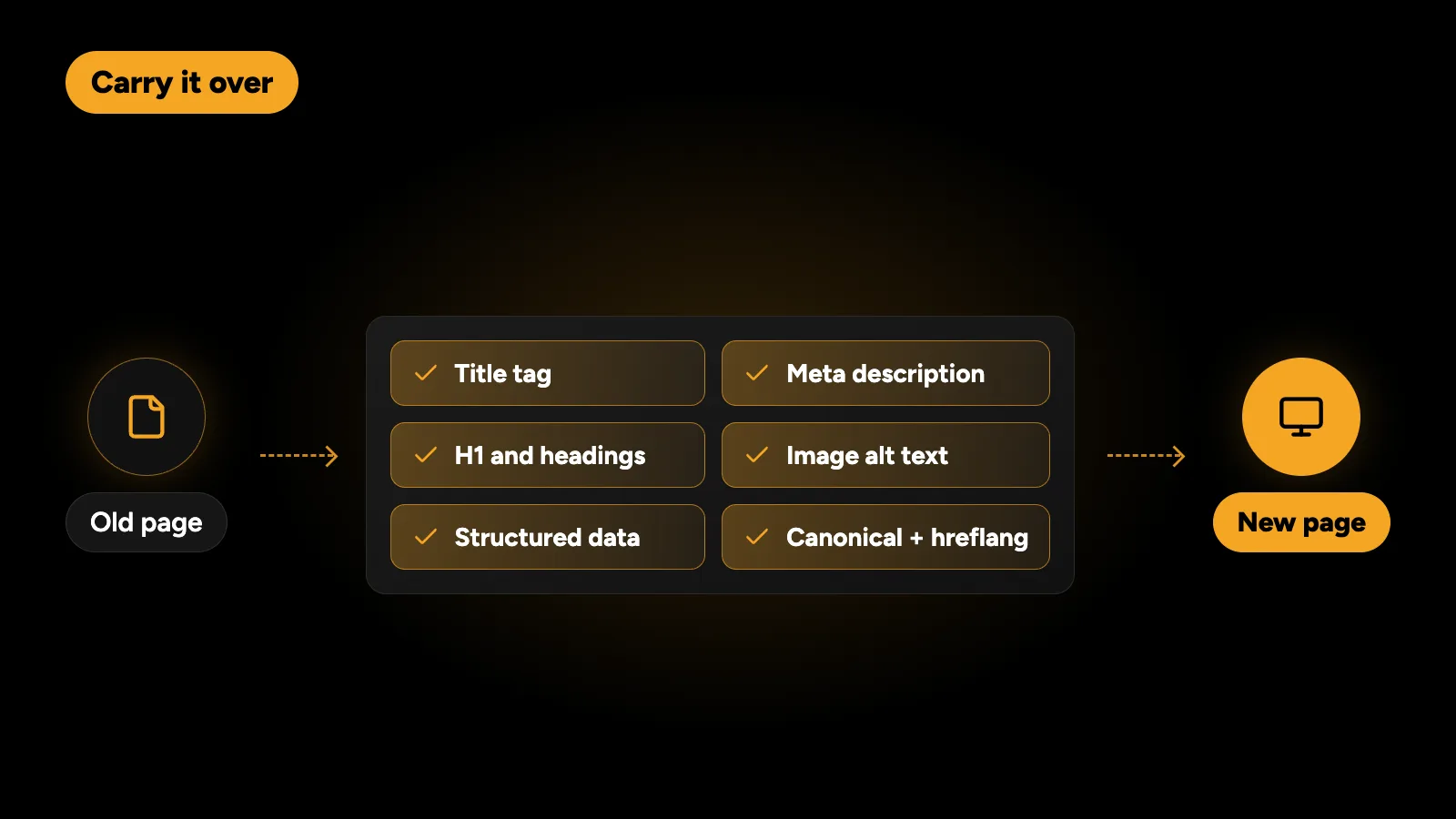
For each kept or redirected page, copy across:
- The title tag and meta description.
- The H1 and heading structure.
- Image alt text.
- Structured data such as Organization, Service, Product, FAQ and BreadcrumbList.
- Canonical tags and, for multilingual sites, hreflang tags.
If you used Yoast or Rank Math before, keep the same plugin or migrate its data, so titles and descriptions don’t silently reset.
Step 5: Build on staging, with the right settings
Build the new design on a staging copy that search engines can’t index: password protection is safer than relying on “noindex” alone. Then, before launch:
- Crawl staging and fix broken internal links.
- Test mobile speed against Core Web Vitals thresholds. A redesign is the cheapest moment to get this right; see how to fix a failed Core Web Vitals assessment.
- Check every page template on a phone.
Step 6: Launch day checklist
- Remove “Discourage search engines” in WordPress settings, and any staging noindex or password.
- Install the redirect map and test a sample of old URLs, including the ones with backlinks.
- Check robots.txt isn’t blocking anything important.
- Submit the XML sitemap in Search Console.
- Request indexing for the home page and key service pages.
- Check analytics and conversion tracking still fire.
Step 7: Watch the first eight weeks
Some movement in rankings during the first few weeks is normal while Google recrawls. What matters is the trend.
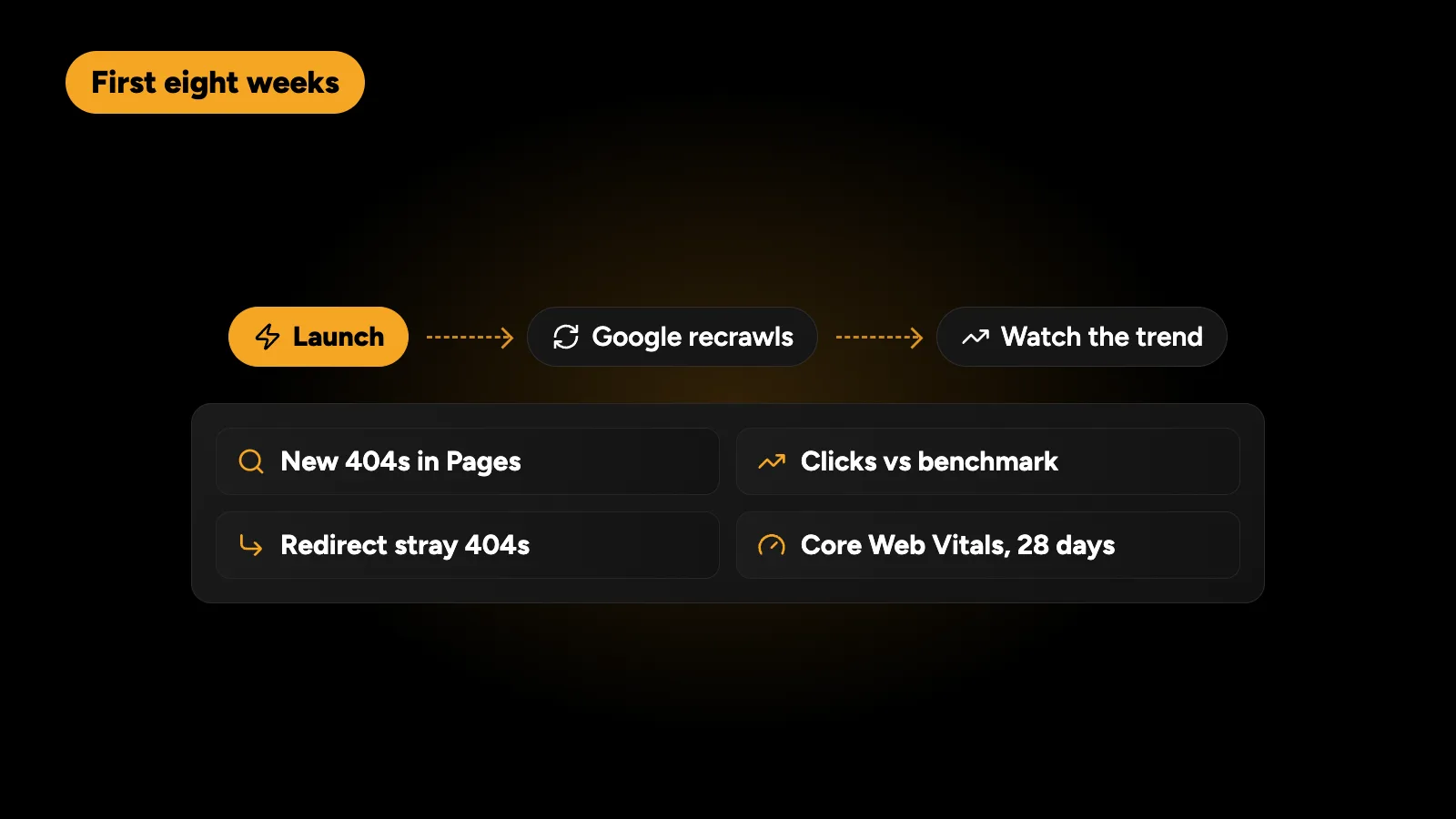
- Check Search Console’s Pages report for new 404s and “Page with redirect” issues.
- Compare clicks and impressions for your top pages against the benchmark.
- Fix any old URL still returning 404 with a new redirect.
- Watch Core Web Vitals, which update over 28 days.
What about switching from a page builder to a custom theme?
This is one of the most common redesigns, and it carries one extra risk: builder content is stored in the builder’s own format. When the builder is switched off, that content doesn’t move by itself. Plan to rebuild each page’s content into the new theme’s fields, page by page, and keep the URLs.
On Technest, a dated Elementor site was replaced by a custom bilingual theme with 14 editable layouts. The point of a move like this is a faster, more consistent site, which only pays off if the existing search visibility comes along with it. If you’re still deciding between the two approaches, read Elementor vs a custom WordPress theme.
Is a redesign worth the risk?
Usually, yes, when the current site is slow, hard to edit or failing to convert. Done carefully, a redesign often improves rankings, because the new site is faster and better structured. The risk comes from treating SEO as an afterthought. Make the URL map and the content plan part of the design brief from day one.
For a sense of budget, see how much a WordPress website costs in 2026.
Every redesign I deliver keeps its rankings through a full redirect map, carried-over content and metadata, and a launch checklist. If you’re planning one, get a fixed quote within 24 hours.